Why Do I Need 2FA For My Account
Two-Factor Authentication (2FA) adds an extra layer of security to your Chattels account by requiring a verification code in addition to your password. This helps prevent unauthorized access, even if someone else has your password.
✍️ Note: You must enable 2FA within 10 days of creating your account. If not, your account will be temporarily locked until you contact Chattels Support to regain access.
Step-by-Step Guide to Setting Up 2FA
Step 2: Install an Authenticator App
- To set up 2FA, you will need an authenticator app on your mobile device.
- Recommended options include:
- Google Authenticator (Recommended)
- Authy
- Microsoft Authenticator
- Download your chosen app from the Google Play Store (Android) or App Store (iOS).
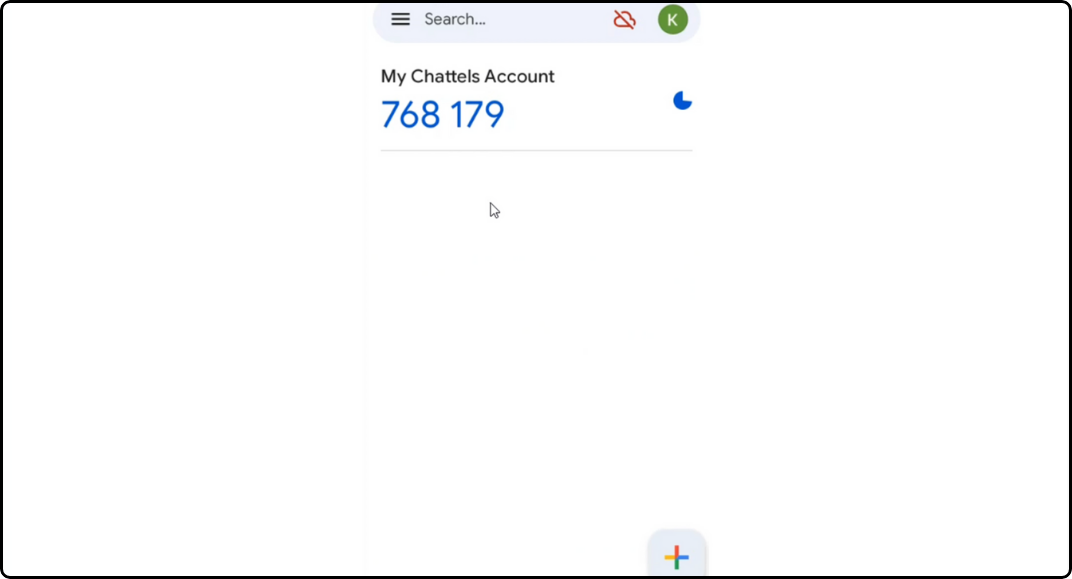
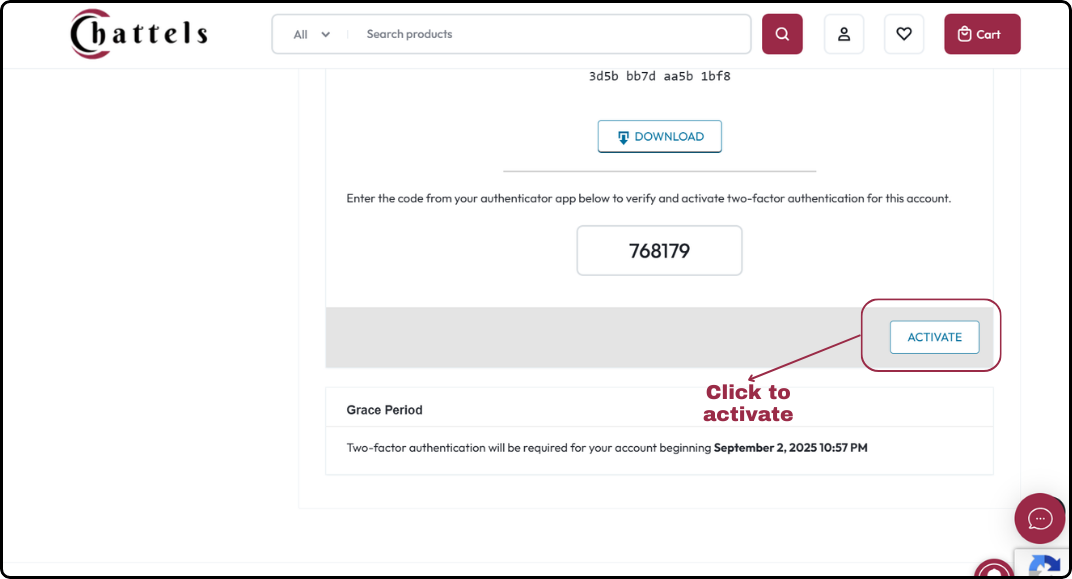
Step 3: Connect Your Account to the App
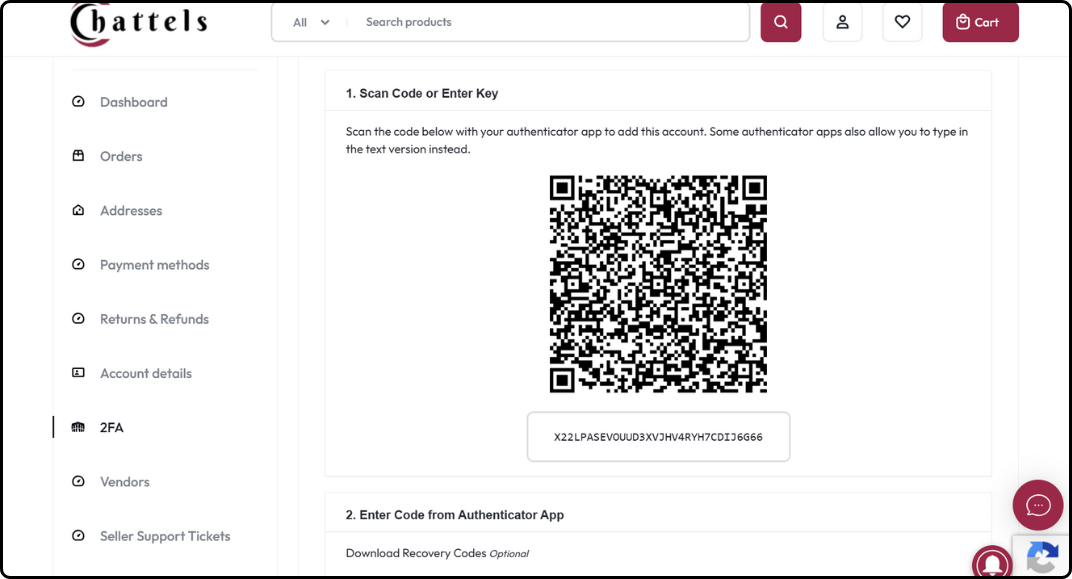
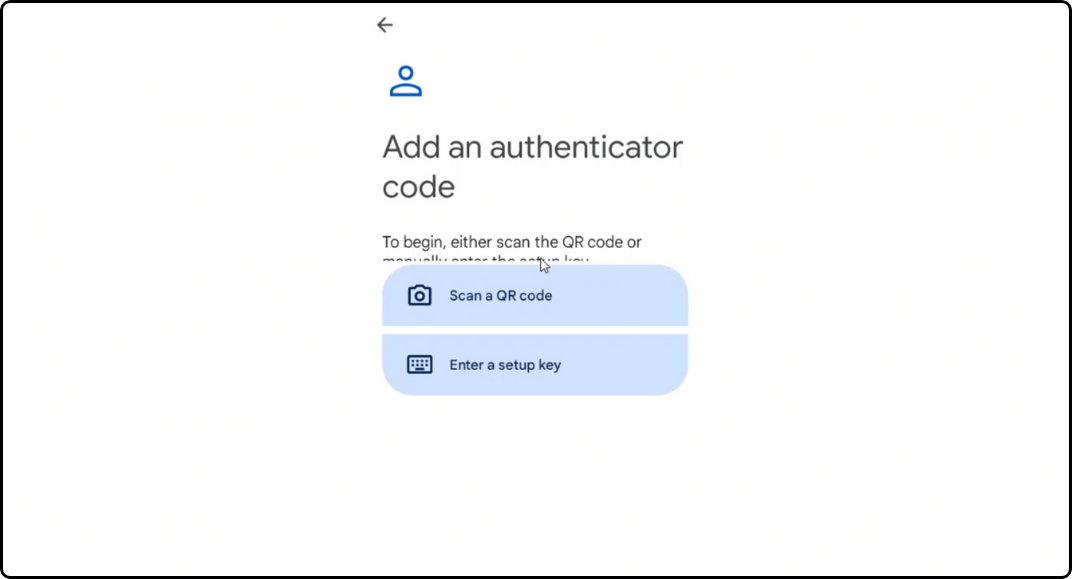
There are two ways to connect your Chattels account to the authenticator app:
- By scanning the QR code
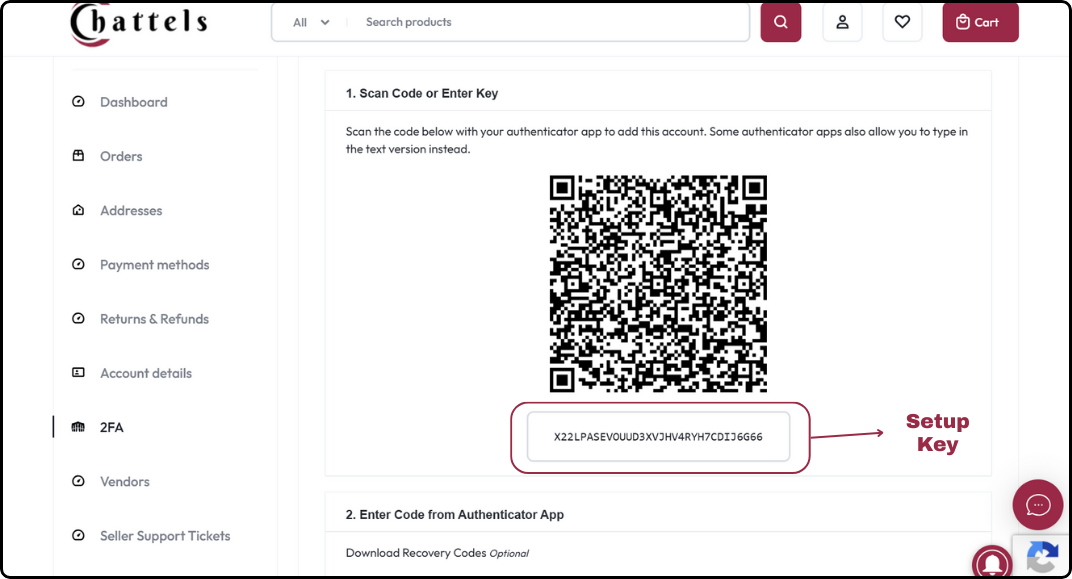
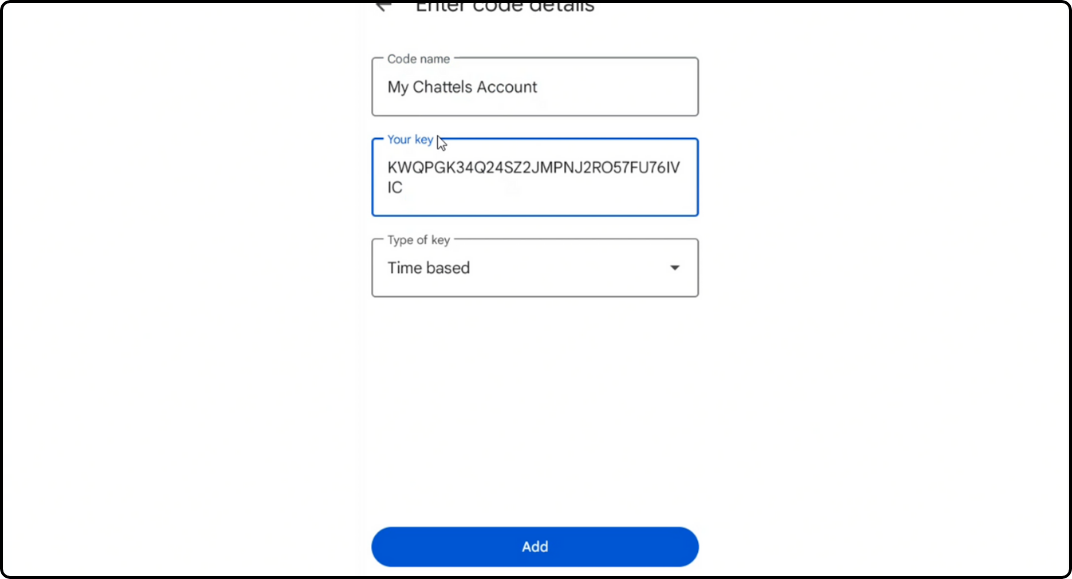
- Using a setup key (This guide uses this method)
To use the setup key method:
Step 4: Save Your Recovery Codes
- After activation, you will be provided with 5 recovery codes.
- Download and securely store them — preferably offline.
- Each recovery code is valid for one-time use only.
- Use these codes if you lose access to your authenticator app.
Important Notes
- Setup Deadline: 2FA must be set up within 10 days of account creation.
- Account Lock: If 2FA is not set up within this period, your account will be temporarily locked.
- Support Access: If you are locked out and do not have recovery codes, you must contact Chattels Support for assistance.